A Dallas law firm can leave its file server for SharePoint or a legal document management system without closing for a day. Copy everything weeks early, then move only what changed over one weekend. The traps are law-firm traps. Ethical walls built from Deny permissions don’t survive the copy, each file arrives as it stands today without its past versions, and the old server still holds trust records you must keep 5 years after each representation ends.
A law firm cloud migration in Dallas moves client files off an office server into SharePoint or a legal DMS through weeks of background copying and one weekend cutover, with ethical walls, file counts, and trust records checked before Monday. Plan it around the docket. Not the vendor’s calendar.
Uprite runs IT services for law firms in Dallas from our office on Alpha Road, and I’m the VP of Operations. Migrations land on my desk because they’re scheduling problems first. Technology is the easy half.
Partners ask me 3 things. Will anyone lose a day? Will the screened associate suddenly open a file they aren’t supposed to see? And can we still prove what the folder looked like in 2023 if opposing counsel asks?
Good questions. Each has a straight answer, and one of them is uncomfortable.
What is a law firm cloud migration?
A law firm cloud migration is the project of moving client matter files, templates, and firm records from a server in the office to a hosted system such as SharePoint in Microsoft 365, NetDocuments, or iManage Cloud. It ends on a cutover date, after which the old server goes read-only and then retires.
Email usually moves too. That part is well covered in our Microsoft 365 migration checklist for Texas businesses, so this post stays on the file server, which is where a law firm’s risk actually sits. Email carries a fraud risk of its own, and our guide to law firm email compromise in Dallas covers how trust-account wire fraud gets through.
And it’s a project with a finish line. The monthly cloud bill that follows is a separate budget, covered on our managed cloud services in Dallas page.
Why are Dallas firms moving off the file server now?
The calendar is forcing it. Microsoft’s lifecycle page for Windows Server 2016 lists the end of extended support as January 12, 2027. After that date, Microsoft’s regular security updates for it stop.
A server bought around 2017 often runs exactly that version. It sits in a closet, holds every matter since, and nobody has looked inside the chassis in years.
Size matters here too. BLS county data for 2025 counts 2,187 law offices in Dallas County with an average of 9.4 employees each, a figure we broke down in what Dallas law firms pay for managed IT. A 9-person office rarely has anyone whose job is the server.
The bar noticed. In 2019 the Texas Supreme Court amended comment 8 to Rule 1.01, so lawyers should now strive to stay competent in “the benefits and risks associated with relevant technology,” as the State Bar of Texas blog reported when the order came down. A server about to lose security updates while it holds privileged files is a risk you can see from across the room.
Should a Dallas firm move to SharePoint or a legal DMS?
It depends on how your lawyers file email and how often you screen people. That’s the honest answer, and I’d rather give it than sell you either one.
SharePoint comes with Microsoft 365 licenses many firms already pay for. A legal DMS such as NetDocuments or iManage costs more per seat but organizes everything by client and matter out of the box. Here’s where each one fits.
| What your firm needs | SharePoint in Microsoft 365 | Legal DMS such as NetDocuments or iManage |
|---|---|---|
| Matter-centric filing by client and matter number | Possible with a deliberate site and library design, built once by whoever runs the migration | Built in, every document carries client and matter fields |
| Filing email to a matter from Outlook | Workable with Outlook and Teams habits, weaker at scale | A core feature, usually with suggested matters |
| Ethical walls and screens | Built from groups and unique permissions, which have limits covered below | Matter-level security built into the product, usually set per matter |
| Extra license cost | Usually nothing new on Business Standard or Premium | About $30 to $75 per user per month on top of Microsoft 365 |
| Best fit | Firms under about 15 people, few screens, mostly transactional work | Litigation shops, frequent lateral hires, heavy email filing, outside counsel guidelines that name a DMS |
The license line comes from our Dallas law firm cost breakdown, which prices the legal software stack separately from the IT provider’s invoice. Those are planning ranges. Your quote will differ.
My take? A 6-lawyer estate planning office on SharePoint is fine. A 20-lawyer litigation boutique that screens laterals twice a year usually regrets SharePoint by the second screen. The migration work barely changes. The destination shapes the design. The cutover stays the same.
What breaks when a law firm file server moves to SharePoint?
Quiet failures do the damage. Microsoft documents every one of them, and each lands harder on a law firm than on an office that just stores invoices.
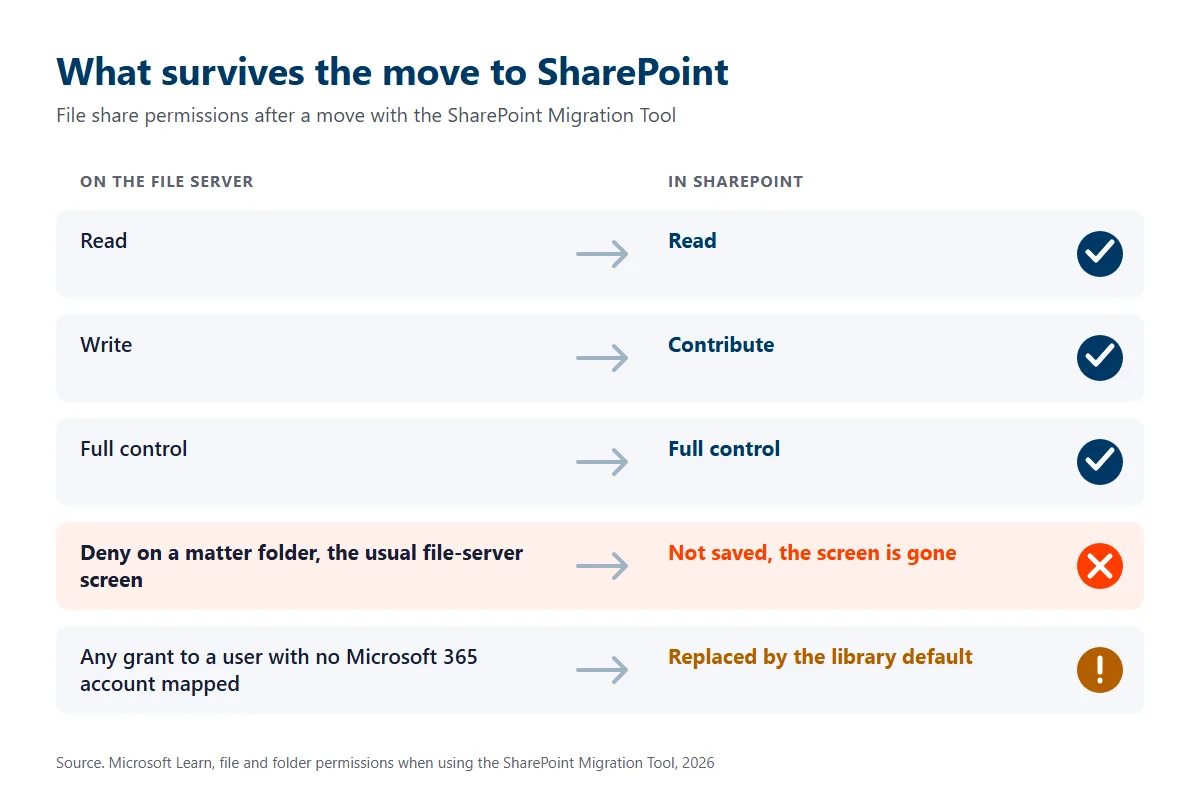
Start with walls. Some firms built ethical screens on the file server the quick way, with a Deny entry on the matter folder for the screened lawyer, because it was fast and nobody had to touch the folder structure. Microsoft’s guide to permissions in the SharePoint Migration Tool says it plainly. Read, Write, and Full control carry over. “Special permissions, such as Deny, aren’t saved.”
So the screen disappears. Microsoft lists it as a note, not a failure, and if the share gives the whole firm access, the screened associate can open the matter on Monday.
The rest is quieter. Almost as expensive.
| What the file server did | What happens in SharePoint | What we fix before cutover |
|---|---|---|
| Deny entries on a matter folder to screen a lawyer | Deny isn’t migrated, so the screen is gone | Rebuild every screen as a group with unique permissions, then test it signed in as the screened person |
| Permissions set folder by folder across one giant client share | Once a library or folder holds more than 100,000 items you can’t break or restore inheritance on it, and Microsoft recommends staying under 5,000 unique permissions per library | Split the share into libraries or sites by practice group or client before copying |
| Hidden system files and file names SharePoint won’t accept | With the hidden files setting off, hidden system files stay behind. With character replacement off, bad names are skipped, and a package that throws more than 100 errors is blocked whole, valid files included | Scan first, rename in bulk, and review the skipped list line by line |
| Deep paths like client, matter, discovery, production, volume, exhibit | Any path over 400 characters after decoding is rejected | Shorten the tree in the new design rather than copying the old one |
| Every lawyer mapped to the whole S drive | Microsoft recommends syncing no more than 300,000 files across the libraries a person syncs | Sync only active matters and open the rest in the browser or Teams |
That leaves the 2023 question, and it’s the uncomfortable one. A file server keeps no version history the migration tool can carry, so every file lands as it stands on cutover day. Proof of what a folder held in 2023 lives in your backups and on the old server, which is one more reason the box stays read-only after go-live.
Each row traces to the permissions guide above, Microsoft’s own SharePoint limits, or its migration tool settings. None of it is secret. It just isn’t on the quote.
Our Texas checklist goes deeper on path length and file names, the generic part of this problem. The Deny row is the law firm part, and it’s the row I’d lose sleep over.
What do the Texas rules expect from the move itself?
Texas lawyers may keep client files in the cloud. Professional Ethics Committee Opinion 680, from September 2018, says so, and adds that lawyers “must remain alert to the possibility of data breaches, unauthorized access, or disclosure of client confidential information.”
The opinion lists 6 reasonable precautions. I treat them as the acceptance test for the migration, because a test is easier to sign off than a principle.
- Know how the platform works, which in practice means a partner can explain where a matter lives and who can open it.
- Read the terms of service before the first file moves, not at renewal.
- Learn the built-in security. Multifactor sign-in, retention, and audit logs are all in Microsoft 365, and not every one is on by default.
- Decide on extra steps like encryption or sensitivity labels for the matters that need them.
- Stay alert to the provider’s track record after go-live.
- Train lawyers and staff, ideally the week before cutover, while the change is real to them.
ABA Formal Opinion 477R from May 2017 points the same way from the national side. Reasonable effort, scaled to sensitivity. For the full Texas opinion trail, including email and AI, our guide to what the Texas Bar expects on cybersecurity has the detail.
Then there’s the old server. Rule 1.15 of the Texas Disciplinary Rules on safekeeping property says complete trust account records “shall be preserved for a period of five years after termination of the representation.” If your billing exports, ledgers, or scanned bank statements live on that box, it isn’t e-waste yet. It’s a records custodian. Confirm those records exist in the new system, readable, before anyone wipes a drive.
How long does the copy take on a Dallas office internet line?
Longer than a weekend, usually. Your upload speed sets the schedule, and it’s often a fraction of the download speed on the bill.
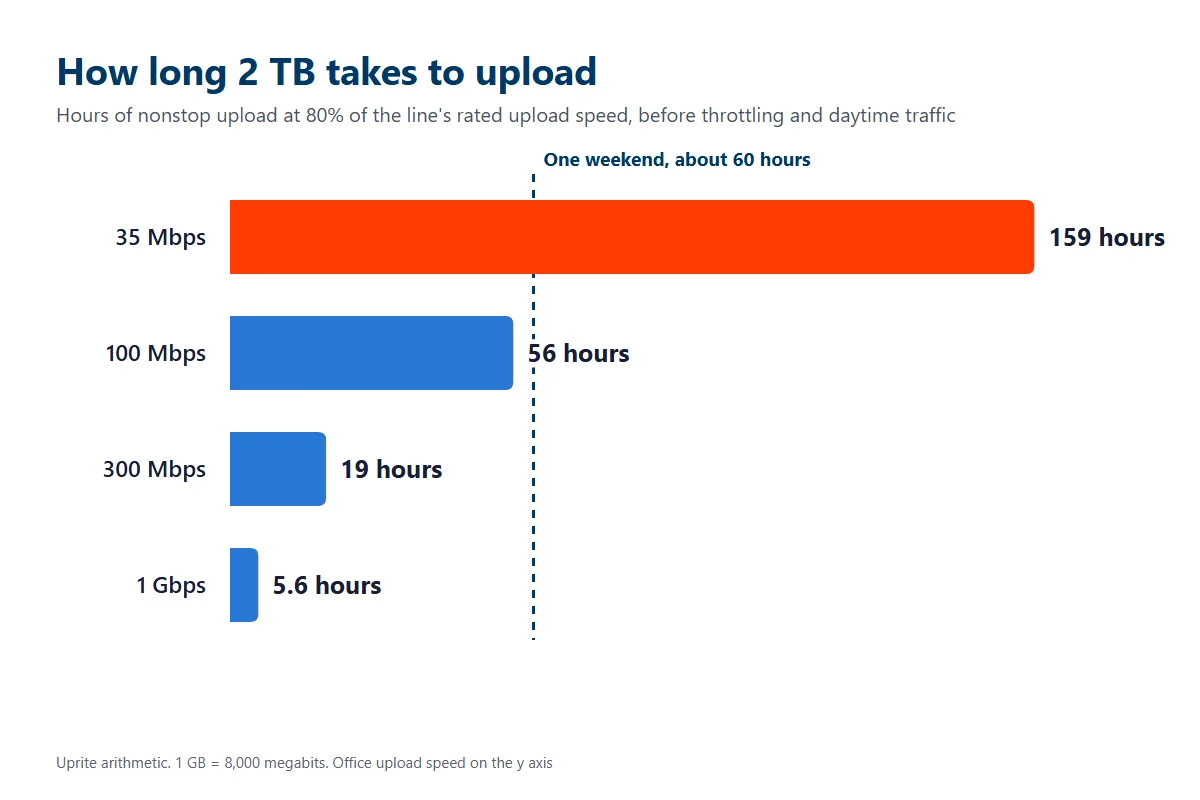
We did the arithmetic. Each gigabyte is 8,000 megabits, and we assumed the line sustains 80% of its rated upload with nobody else using it. Real projects run slower, since Microsoft can throttle heavy migration traffic and the office keeps working while the copy runs.
| Data on the file server | 35 Mbps upload | 100 Mbps upload | 300 Mbps upload | 1 Gbps upload |
|---|---|---|---|---|
| 500 GB | 40 hours | 14 hours | 4.6 hours | 1.4 hours |
| 1 TB | 79 hours | 28 hours | 9.3 hours | 2.8 hours |
| 2 TB | 159 hours | 56 hours | 19 hours | 5.6 hours |
Take 2 TB on 35 Mbps. 159 hours is 6.6 days of nonstop upload, and a weekend has about 60 hours in it. It doesn’t fit. Not even close.
That’s why the cutover weekend should never carry the full copy. The bulk copy runs in the background for 1 to 3 weeks while people keep working, and the migration tool reruns to pick up only new or changed files since its last pass. By Friday, little is left.
One more check. Test the upload on the actual office line in the middle of a weekday afternoon, not on a speed-test site at midnight.
How do you cut over without losing a billable day?
You pick the weekend from the docket, then work backward. Here’s the sequence we run, with the dates set off the firm’s trial and filing calendar rather than ours.
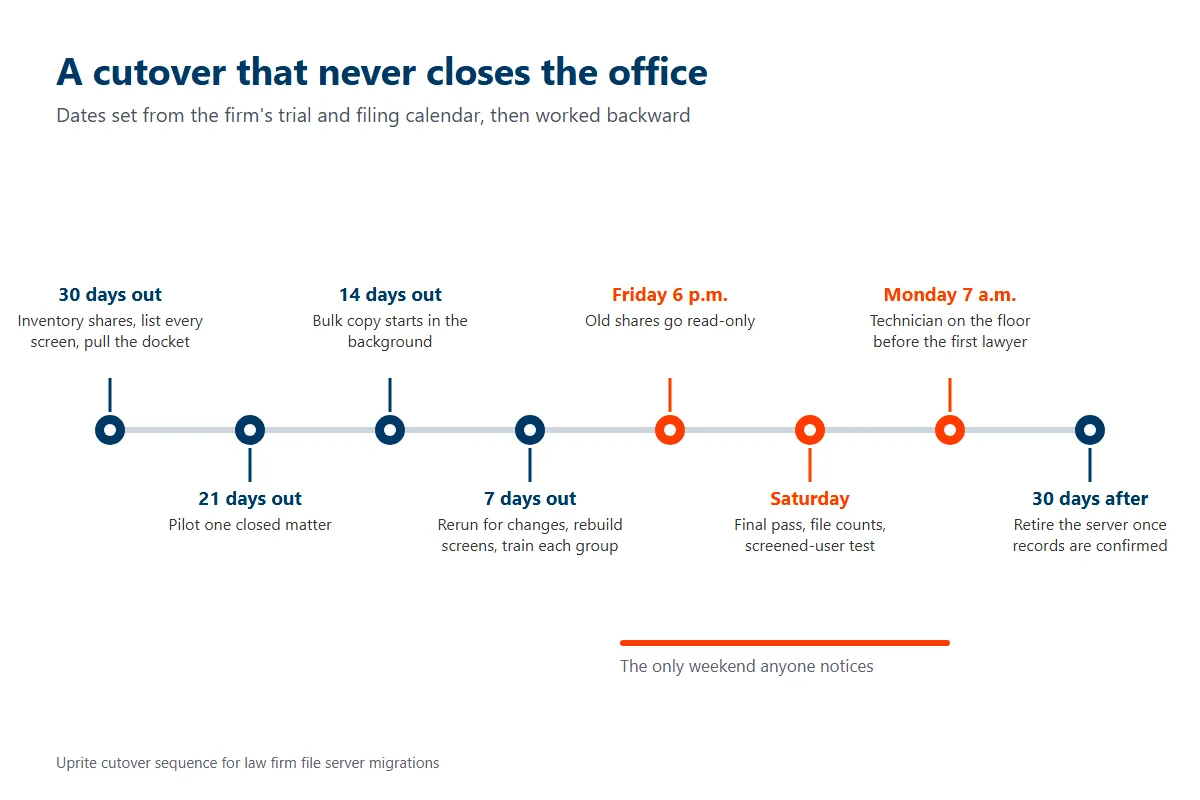
- 30 days out, inventory every share, count files and size, list every screen and who it covers, and pull the docket for the 2 weeks around the target weekend.
- 21 days out, migrate one closed matter as a pilot and have a paralegal try to break it.
- 14 days out, start the bulk copy and let it run through business hours.
- 7 days out, rerun for changes, rebuild screens as groups, and train each practice group for 30 minutes.
- Friday at 6 p.m., freeze the old shares as read-only so nobody saves in 2 places.
- Saturday, run the final pass, compare file counts, and sign in as a screened lawyer to confirm the wall holds.
- Monday at 7 a.m., put a technician on the floor or on the phone before the first lawyer arrives.
- 30 days after, keep the old server read-only, then retire it only after trust records and closed files are confirmed in the new system.
Notice what’s missing. The office never closes.
A multi-location personal injury firm we support kept its case files on a mix of cloud storage and offline NAS devices. Its published case study says the move from its previous provider finished without interrupting active legal work or case deadlines. Staged on purpose. That’s the whole trick.
Avoid the week before a trial setting or a big deposition, the last days of the month when billing runs, and any weekend when one partner owns most of the open filings. Don’t plan on a continuance because your server moved.
What does a law firm cloud migration cost in Dallas?
It’s priced as a project. Uprite’s published range for moving a file server to SharePoint and OneDrive is $3,500 to $12,000 for 200 GB to 4 TB, with permissions rebuilt, and our cloud migration cost breakdown shows the line items behind it.
What moves the number isn’t terabytes. It’s permissions. A 15-year-old share where access was granted to individual people instead of groups has to be redesigned, and every screen adds testing time.
A legal DMS adds its own license and setup on top. Email, identity, and security work that rides along with the move is handled through our Microsoft 365 services in Dallas, and the monthly plans are on our pricing page.
Where Uprite fits
We run these moves for Dallas firms as a scoped project, with the cutover weekend agreed in writing before any data moves. Afterward, we can manage the new system month to month.
And if your firm is 3 lawyers already working out of Clio or NetDocuments with no server at all, you don’t need a migration project. You need someone to check your sharing settings once a quarter. That’s a much smaller conversation. If you’re weighing providers first, our list of the best IT providers for Dallas law firms shows how we scored the field, ourselves included.
Not sure how many screens, hidden files, or trust records your server is holding? We’ll inventory it, map every ethical wall, and give you a cutover date that fits your docket.
Speak to an IT ExpertWhat Dallas attorneys ask before moving their files
Can a Texas law firm store client files in SharePoint?
Yes, Texas Opinion 680 allows cloud storage of confidential client information as long as the lawyer takes reasonable precautions. Those include understanding the platform, reading its terms of service, using its security features, and training lawyers and staff.
How long does a law firm file server migration take?
Plan on about 30 days from inventory to the cutover weekend for a typical small firm, then 30 more before the old server retires. The office keeps working throughout, because the bulk copy runs in the background and the switch happens over one weekend.
Will our ethical walls survive the move?
Not automatically. Microsoft says its migration tool does not carry Deny permissions, so any screen built that way on the file server has to be rebuilt as a group with unique permissions and tested by signing in as the screened person.
Do we need NetDocuments or iManage, or is Microsoft 365 enough?
Microsoft 365 is enough for many small transactional firms. Litigation practices that screen lateral hires often, file email to matters all day, or answer to outside counsel guidelines usually get more from a legal DMS, at roughly $30 to $75 per user per month.
Is it safe to wipe the old server after cutover?
Wait at least 30 days. Keep it read-only first, then confirm trust account records, closed files, and billing exports are readable in the new system, since Texas Rule 1.15 requires trust records to be kept 5 years after a representation ends.
Should closed matters move to the cloud too?
Often they should not move into the main document system. Closed matters can go to an archive library or retention storage instead, which keeps active matter searches fast and stops old files from counting against sync and permission limits.
What does a Dallas law firm pay for a cloud migration?
Moving a file server to SharePoint runs $3,500 to $12,000 at Uprite for 200 GB to 4 TB. Permissions decide where you land, so a share with many individual grants and ethical screens costs more than a clean one.